
Welcome to this comprehensive and informative series on SAP S/4HANA Integration with Ariba.This is S/4HANA Integration with Ariba Part 7 before diving into this topic please refer S/4HANA Integration with Ariba Part 6
In this integration journey, I will teach you the complete end-to-end configuration required to integrate S/4HANA with all solutions of Ariba for smooth and accurate data transformation.
This series is divided into multiple parts, so before reading any specific integration topic, please ensure you have gone through the previous parts for better understanding.
Note – This integration is also valid for SAP ECC system.
Table of Contents
I am again telling you Before moving to this part, please refer to Part 6, where I explained some important integration preconditions. Make sure you have gone through Part 6 and understood those points; otherwise, you may face confusion in the upcoming integration steps.
Until now, we have completed the prerequisite activities required for the S/4HANA–Ariba integration. From this point onward, we will begin the actual configuration activities. These configuration steps will be explained in great detail, so you will not need to refer to any other document. This entire integration series will be sufficient and informative to fully understand the integration.
Global Settings
This is the first configuration step to integrate S/4HANA with Ariba. Global Settings are a mandatory step and are applicable to all Ariba solutions. These settings are maintained to enable S/4HANA to communicate with CIG.
Maintaining Certificates
For S/4HANA, Ariba is considered a third-party system. To authenticate and establish trust between these systems, we maintain the CIG SSL certificate in S/4HANA.
Follow the steps below to download the CIG SSL certificate to Download the SSL certificate to your local system.
Log in to Ariba.
Go to Manage and click on Administration.
Expand the Integration Manager menu and click on Visit the SAP Integration Suite, managed gateway for Spend Management and SAP Business Network.
The CIG application will open. Navigate to the Resources tab.Expand CIG Certificates, then expand Load Balancer Certificates. You will see two options: Test and Prod. Select the appropriate option based on your system landscape.
Procedure to Maintain Certificate in S/4HANA
- Run the transaction code SPRO.
- The Customizing: Execute Project screen appears.
- Click SAP Reference IMG.The Display IMG screen appears.
- Navigate to —> Integration with Other SAP Components —> Managed Gateway for Spend&Network for Supplier —>Global Settings.
- Click IMG-Activity for Maintain Certificates.
- The Trust Manager screen appears.
- On the Trust Manager screen, click SSL Client SSL Client(Anonymous).
- Go to the bottom of the page and click the Import Certificates button. Navigate to the local drive in your computer where you have saved the SSL server certificate.
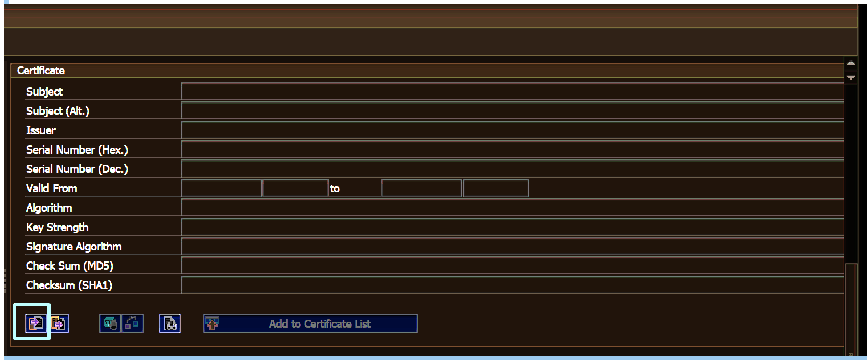
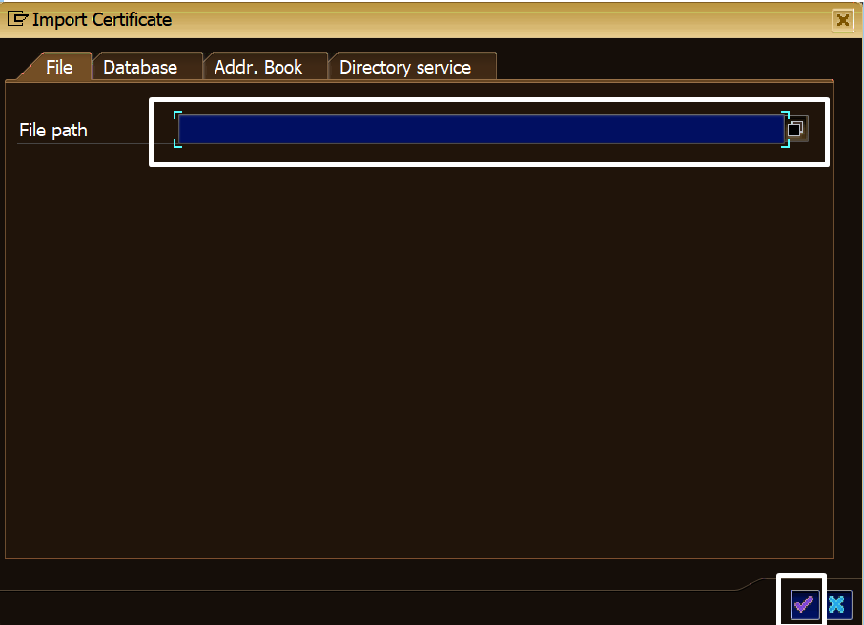
- Press Enter
- Click Allow to import the certificates.
- Click Add to Certificate List
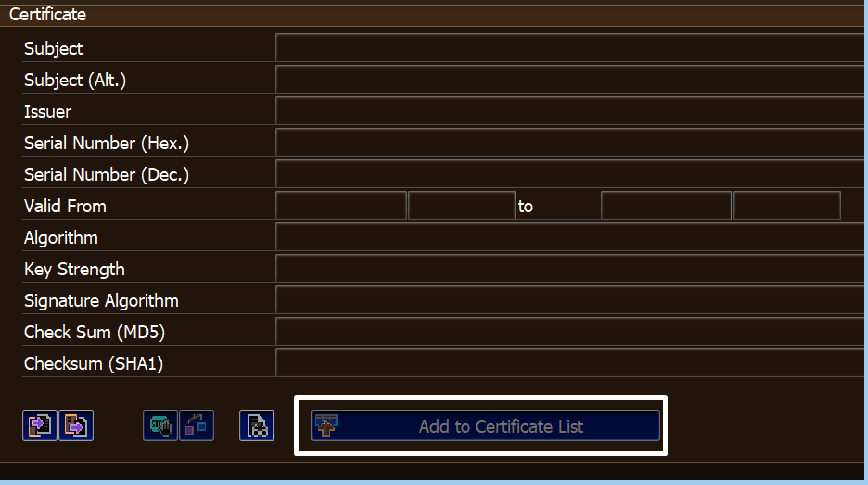
- You will see a message that you have added the certificates successfully.
Creating an RFC Destination
After maintaining the certificate, the next step is to create an RFC destination. We create an RFC destination to connect the S/4HANA system with CIG so that IDoc documents can be sent successfully.
Please note that the RFC destination is used only for sending IDoc documents to CIG. For web service–based communication, we use SOAMANAGER, not RFC.
Procedure to Create RFC Destination
- Run the transaction code SPRO.
- The Customizing: Execute Project screen appears.
- Click SAP Reference IMG.The Display IMG screen appears.
- Navigate to —> Integration with Other SAP Components —> Managed Gateway for Spend&Network for Supplier —>Global Settings.
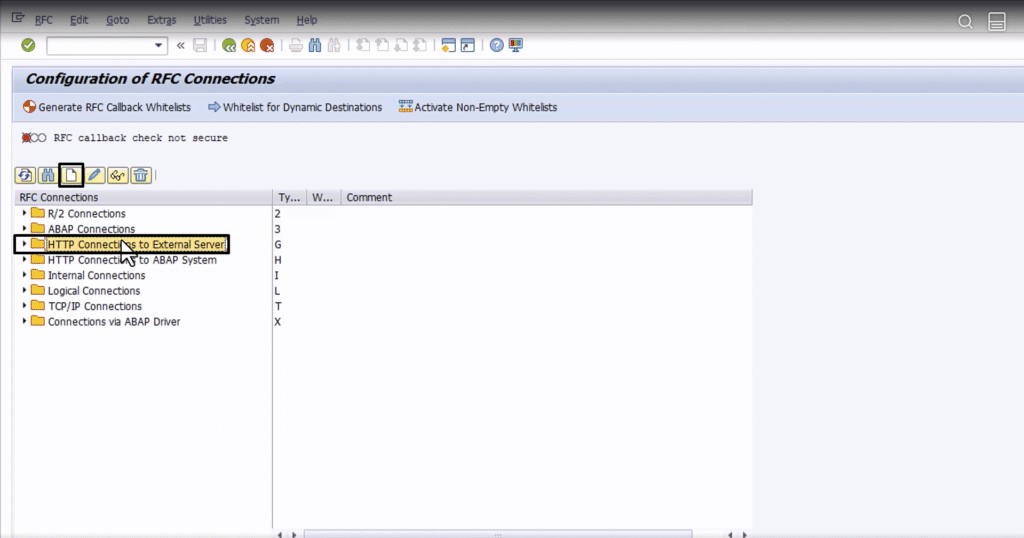
- Click IMG-Activity for Create RFC Destination.The Configuration of RFC Connections screen appears.
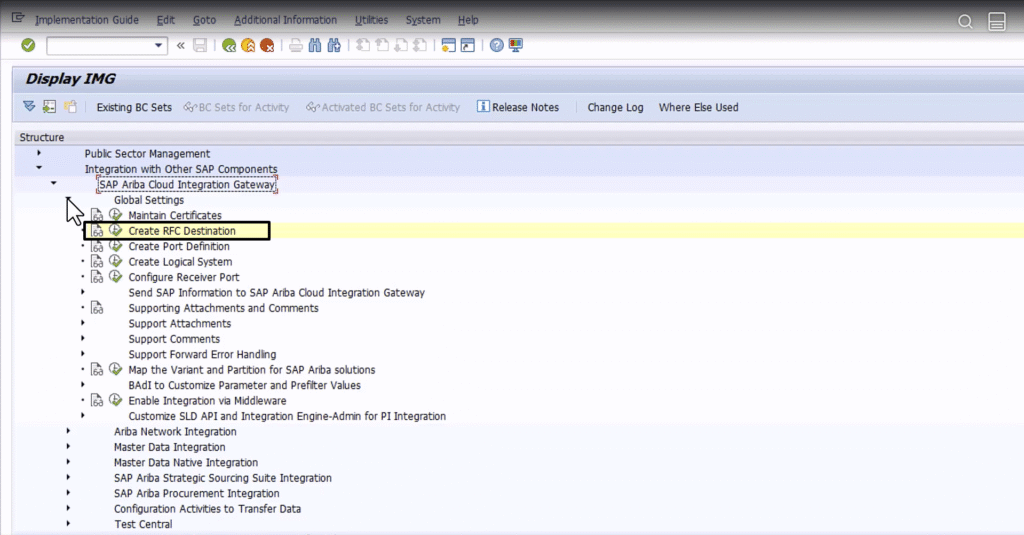
- Click HTTP Connections to External Server and click Create.
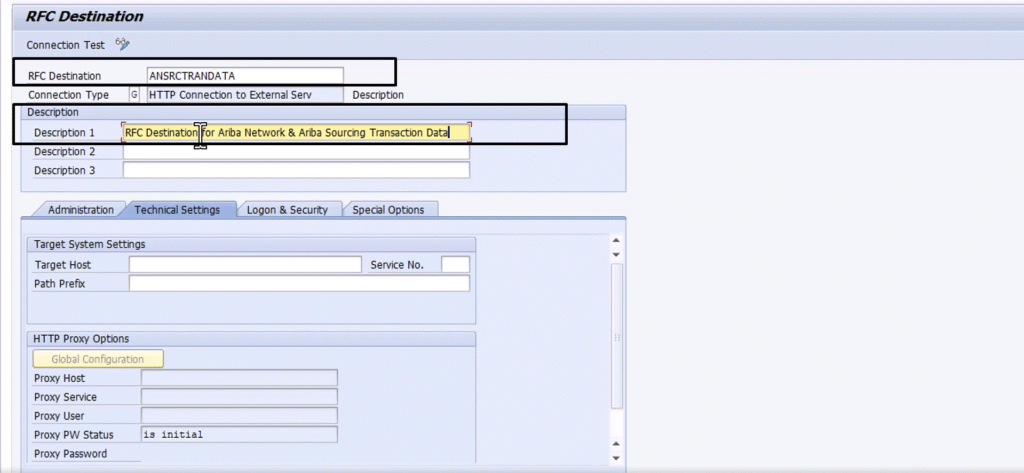
Maintain the fields for the following parameters and save:
- RFC Destination – Give a appropriate name like “RFC Sourcing”
- Description
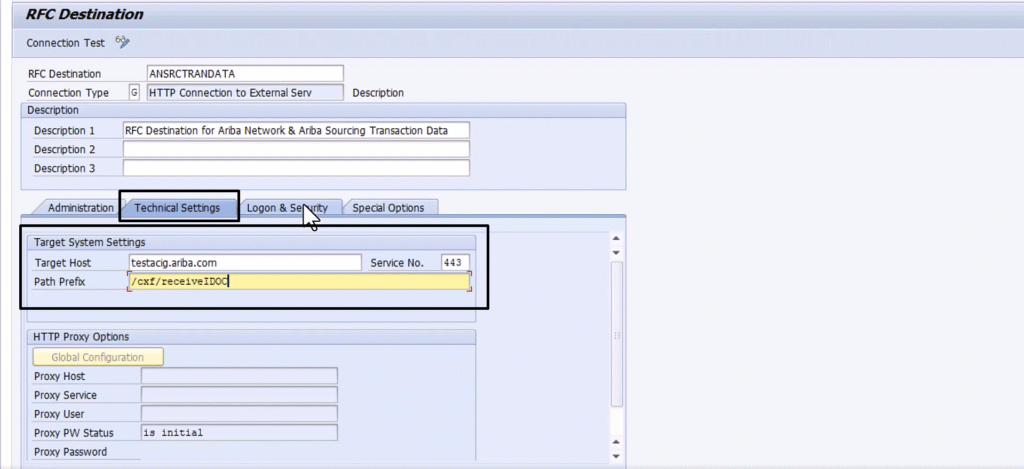
Under Technical Settings tab, maintain the following parameters for Target System Settings:
- Target Host – Here, maintain the host/link of the SSL certificate that was configured in the “Maintain Certificate” step, based on the system landscape (Test or Production). For example, for the Europe data center, enter
testacig.ariba.comfor the Test system andacig.ariba.comfor the Production system. - Service No: 443
- Path Prefix: Here Maintain Path prefix according to your Solution e.g Path Prefix for Ariba Network Integration: /cxf/receiveIDOC
Path Prefix for Ariba Applications Integration: /cxf/receiveERPIDOC
(Optional) HTTP Proxy Options:
- Proxy Host for SAP Business Network integration: proxy.ariba.com (for example).
- Proxy Service: 8080 (for example).
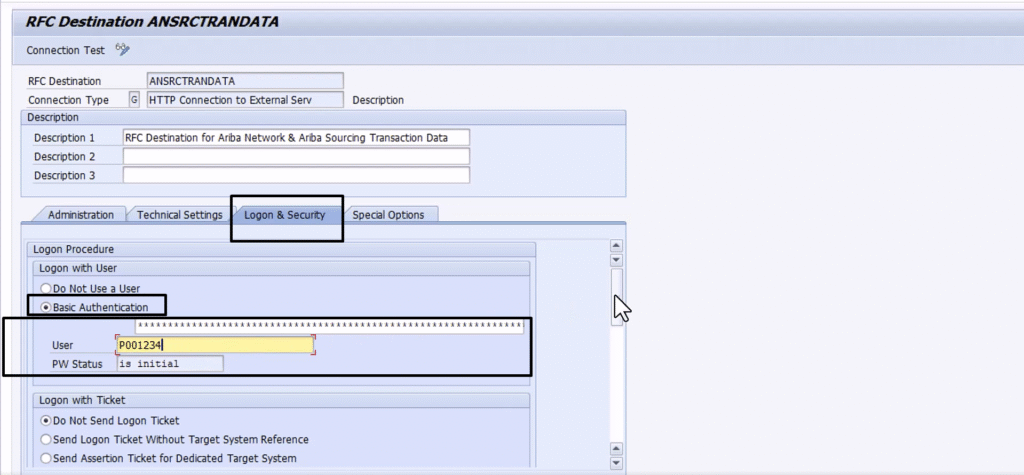
Under Logon & Security tab, choose the following for:
Logon Procedure: Basic Authentication
User: Enter CIG Puser.
Password: Enter CIG password.
SSL: Active
SSL Client Certificate: ANONYM SSL Client (Anonymous): Here, you will notice that we are selecting the same SSL certificate that was maintained earlier. In the RFC configuration, we select this SSL certificate to establish a trusted connection between S/4HANA and Ariba. This clearly shows the linkage between the “Maintain Certificate” step and the RFC configuration.
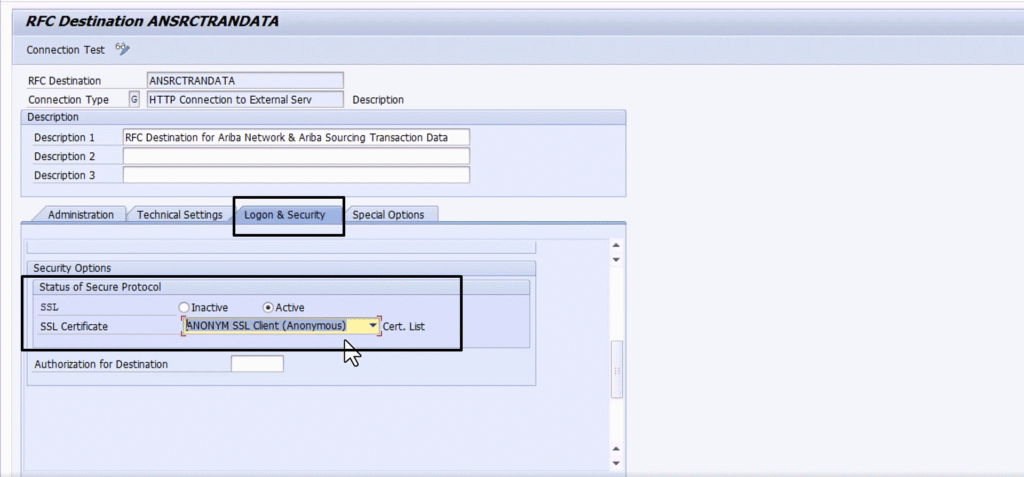
Click Save.
RFC Destination Created Successfully.
Configuring SOAMANAGER for Webservices
We configure SOAMANAGER to connect S/4HANA with CIG so that web services can be sent successfully from S/4HANA to Ariba. In the previous step, we created an RFC destination to send IDocs to Ariba. Similarly, SOAMANAGER is required for web service communication.
However, SOAMANAGER does not need to be configured manually. There is an integration node called “Set-Up Interface” that automatically configures SOAMANAGER. I will explain this node in detail with proper logic in the upcoming steps.
If you still want to understand how to configure SOAMANAGER manually, you can refer to the SAP documentation below.
SOAMANAGER CONFIGURATION
Knowledge Note:
If you are performing integration for SAP Ariba SLP and SAP Ariba Buying, there is no involvement of IDocs. All documents are routed through web services. In such cases, there is no need to create an RFC destination; only SOAMANAGER configuration is required.
Important Notes
As you know, from this part onward we have started the actual configuration. In this section, under Global Settings, we have covered the “Maintain Certificate” and “RFC” configurations. Please note that these configurations differ for Test and Production systems, and the respective Test and Prod changes have been clearly mentioned in the blog.
In the RFC settings, there may be some confusion regarding the Host field under the Technical Settings. The host value used here is the same as the CIG SSL certificate host. This host can be obtained from CIG under the Resources tab. As explained earlier in the “Maintain Certificate” step, the same host should be used while configuring the RFC destination.
Always choose your Certificates and Hosts according to CIG Data centers.