
Welcome to this comprehensive and informative series on SAP S/4HANA Integration with Ariba.This is S/4HANA Integration with Ariba Part 9 before diving into this topic please refer S/4HANA Integration with Ariba Part 8
In this integration journey, I have explained the complete end-to-end configuration required to integrate S/4HANA with all solutions of Ariba for smooth and accurate data transformation.
This series is divided into multiple parts, so before reading any specific integration topic, please ensure you have gone through the previous parts for better understanding.
Note – This integration is also valid for SAP ECC system.
Table of Contents
In Part 8 of the Ariba Integration series, we covered Port Definition, Logical System, and Receiver Port. In this part, we will cover the remaining Global Settings configurations.
Global Settings
Sending SAP Information to the Managed Gateway for Spend&Network
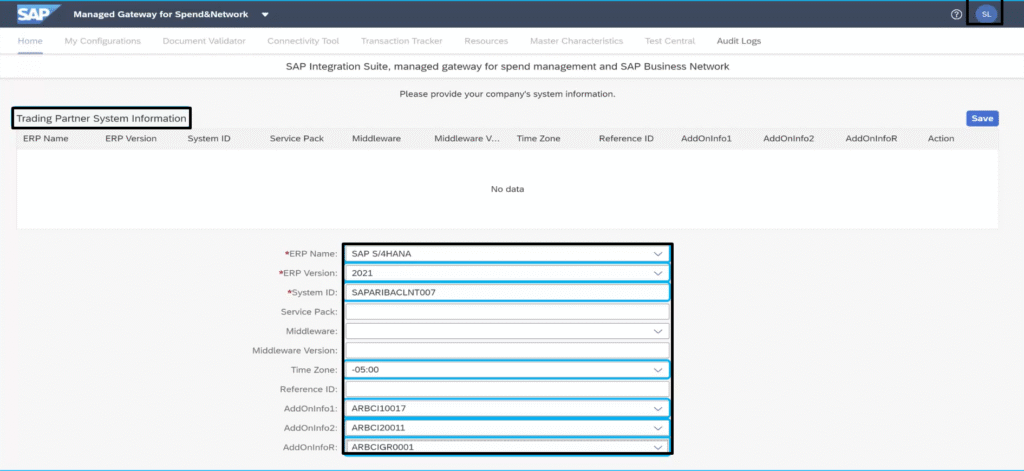
The significance of this configuration is to send S/4HANA system information—such as version, system ID, time zone, client, and ERP software component—to CIG.
Run this task every time whenever you upgrade S/4HANA system so that the upgrade information is transmitted to CIG.
Procedure
- Run the transaction code SPRO, The Customizing: Execute Project screen appears.
- Click SAP Reference IMG,The Display IMG screen appears.
- Navigate to —> Integration with Other SAP Components —> Managed Gateway for Spend&Network for Buyer
—> Global Settings —> Send SAP Information to Managed Gateway for Spend&Network
Enter the following details
- User Name – Enter the CIG P-user that you received via email when CIG was enabled.
- Password – Enter CIG P-user’s Password
- Name of Proxy Host(Optional): Enter the proxy host name for your organization.
- Port Number of Proxy Host(Optional): Enter the port number of the proxy host for your organization.
- click the Choose a data center drop down, and then choose your data center
Select one of the following connection instances:
- Connect to Managed Gateway for Spend&Network Test Instance: Select this if you are setting up a test
instance. - Connect to Managed Gateway for Spend&Network Production Instance: Select this if you are setting up
a production instance - Click Execute
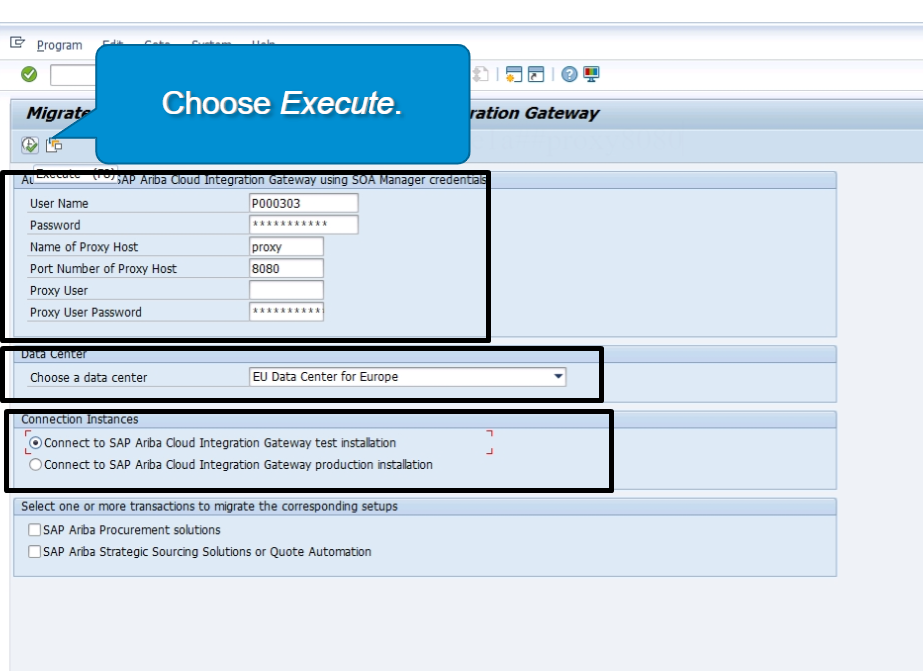
After completing this step, you will receive an ERP request in CIG. You need to log in to the CIG Dashboard and need to verify the ERP system info successfully received in or not
Below are the steps you need to follow after syncing S/4HANA data with CIG.
- Log in to the SAP Ariba Dashboard.
- Go to Manage → Administration for Ariba Sourcing.Core Administration for Ariba Buying and Invoicing
- Under Integration Manager, select Managed Gateway for Spend Management and SAP Business Network.
- On the CIG Dashboard, click on the Profile icon and select Basic Data
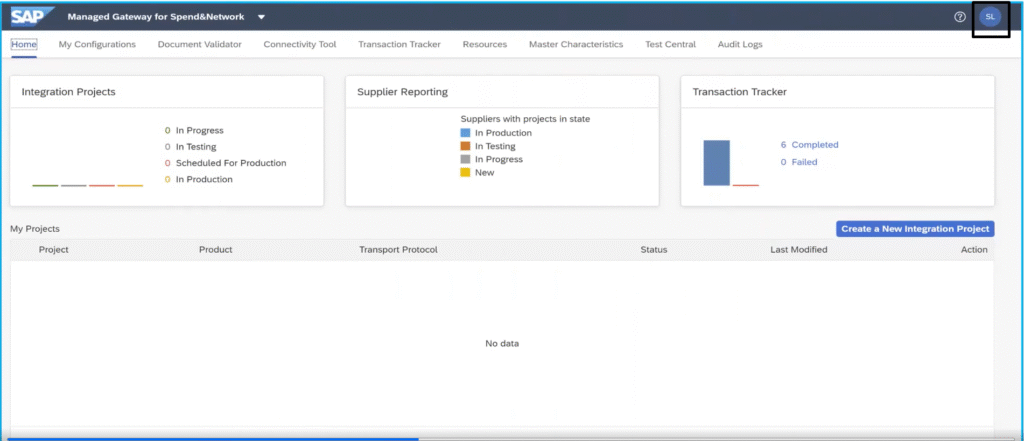
You will see the message “Successfully created basic info.” This confirms that your ERP information has been successfully added to CIG.
Mapping Variants and Partition to SAP Ariba Solutions
Here, we maintain a unique Variant and Partition for SAP Ariba Procurement solutions and SAP Ariba Sourcing solutions. The Variant and Partition help differentiate between these Ariba solutions when sending S/4HANA master data. As a result, the master data is sent to the appropriate Ariba solution.
In simple terms, in this step we assign a unique Variant and Partition to Ariba Sourcing and Ariba Procurement. Once both solutions have their own unique Variant and Partition codes, you can select the relevant Variant and Partition while sending master data to Ariba, ensuring that the data is routed to the correct solution.
This concept becomes clearer when you execute the ARBCIG_MASTER_DATA_EXPORT program to send master data to Ariba.
Procedure
- Run the transaction code SPRO, The Customizing: Execute Project screen appears.
- Click SAP Reference IMG,The Display IMG screen appears.
- Navigate to —> Integration with Other SAP Components —> Managed Gateway for Spend&Network for Buyer
—> Global Settings —> Map the Variant and Partition for SAP Ariba solutions
Maintain the following parameter:
- Variant – Here you can maintain any name.The unique variant name for the SAP Ariba solutions in SAP ERP. For Example, VSAP_1
- Partition – Here you can maintain any name. The unique name of your site for the SAP Ariba solutions in SAP ERP. For Example, PSAP_1
- Solution – Select the Ariba Solution for which you are assigning the Variant and Partition.
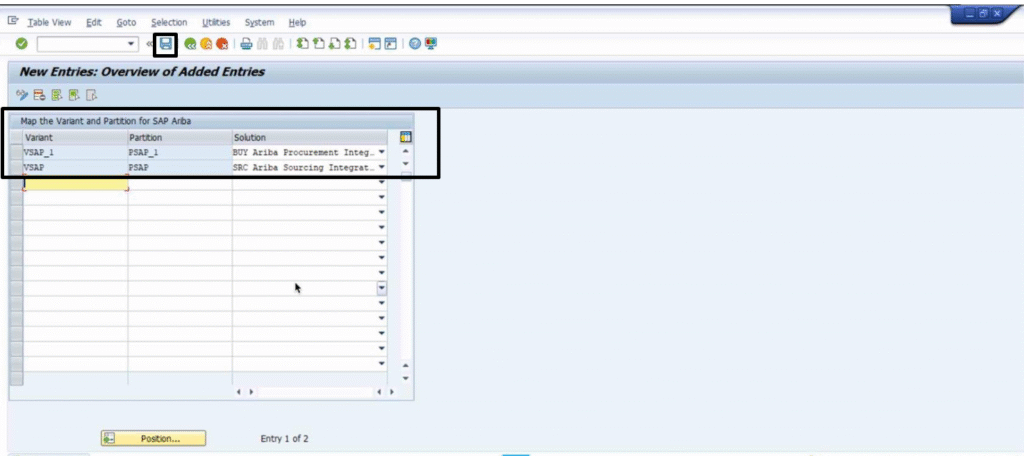
This is how we complete the Global Settings configuration. As mentioned earlier, Global Settings are mandatory for all Ariba solutions. From the next part onward, we will start the solution-specific configuration.